Nov 24, 2026
Author:Lisa Martinez
If your WOPET feeder won’t connect to Wi-Fi, check the model number before changing anything on your router. The Patrol F07 Pro needs 2.4 GHz Wi-Fi. The Heritage View HV10P and HV10DP support both 2.4 GHz and 5 GHz. Once you know which model you have, plug the feeder into wall power, bring it close to the router, and open WOpet Life to pair it. If a meal is due while you’re troubleshooting, check whether your pet has already eaten and serve their usual portion by hand if needed.
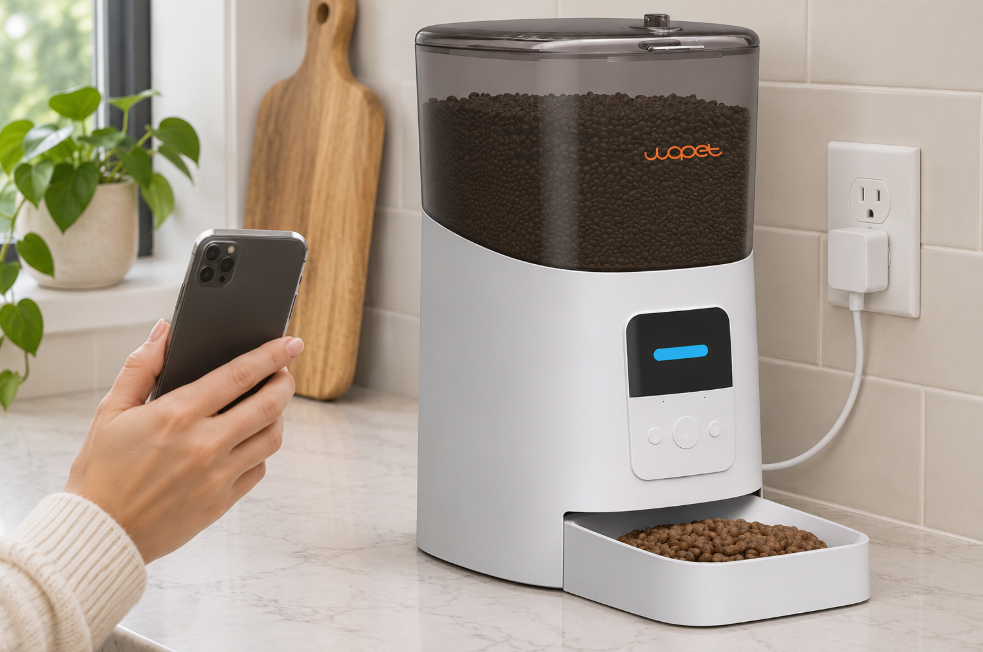
| Feeder | Supported Wi-Fi | Setup instructions |
|---|---|---|
| Patrol F07 Pro | 2.4 GHz | Patrol F07 Pro setup video and user guide |
| Heritage View HV10P | 2.4 GHz and 5 GHz | Heritage View user manual |
| Heritage View HV10DP | 2.4 GHz and 5 GHz | Heritage View user manual |
If your label reads F07 without Pro, use the F07 entry in the manual library. The model number is more useful than the color of the housing or the shape of the food tray. WOPET automatic feeder manuals.
1. Plug the feeder into a wall outlet using its power adapter. Set it close to the router for the first pairing attempt.
2. Connect your phone to your home’s 2.4 GHz network. If your router lists the bands separately, choose the 2.4 GHz name. If both bands share one name and pairing keeps failing, check your router app for a way to select or temporarily give the 2.4 GHz band its own name.
3. Open WOpet Life and add Patrol Pro. Follow the pairing prompts for this model. If you’re unsure which button to use or what the indicator should do, follow the setup video on the Patrol F07 Pro support page.
4. If the app finds the feeder but setup stalls, re-enter the Wi-Fi password. It’s case-sensitive. If the password is correct, check the security setting for the 2.4 GHz network. WOPET’s F07 Pro guide lists WPA and WPA2 and excludes WPA3 and WEP. If your router uses WPA3 only and offers a separate WPA2 network for devices, you can try that network while keeping your main network settings in place.
The HV10P and dual-bowl HV10DP share the Heritage View setup instructions. You can start with either supported Wi-Fi band. If one attempt stalls, move the feeder closer to the router and try again. The manual recommends pairing within about 6 m (20 ft) of the router with a clear path between them.
1. Plug the feeder into a wall outlet using its power adapter. Set it close to the router for the first pairing attempt.
2. Connect your phone to your home’s 2.4 GHz network. If your router lists the bands separately, choose the 2.4 GHz name. If both bands share one name and pairing keeps failing, check your router app for a way to select or temporarily give the 2.4 GHz band its own name.
3. Open WOpet Life and add Patrol Pro. Follow the pairing prompts for this model. If you’re unsure which button to use or what the indicator should do, follow the setup video on the Patrol F07 Pro support page.
4. If the app finds the feeder but setup stalls, re-enter the Wi-Fi password. It’s case-sensitive. If the password is correct, check the security setting for the 2.4 GHz network. WOPET’s F07 Pro guide lists WPA and WPA2 and excludes WPA3 and WEP. If your router uses WPA3 only and offers a separate WPA2 network for devices, you can try that network while keeping your main network settings in place.
| What you see | What to check next |
|---|---|
| The app can’t find a new feeder | Confirm wall power, select the exact model, and follow the app prompt to put the feeder in pairing mode. |
| The app finds the feeder but never finishes connecting | Re-enter the Wi-Fi password and move closer to the router. For F07 Pro, confirm the network is 2.4 GHz and check its security mode. |
| The feeder went offline after a router replacement or password change | Verify the phone is on the new network, note the existing meal schedule, and pair again using the new Wi-Fi credentials. |
| Pairing works near the router but the feeder goes offline in its usual spot | Check the connection from the intended feeding location. Try a nearby spot with fewer walls between the feeder and router. |
| The app says the feeder is online, but food doesn’t come out | Watch one manual dispense. Check the hopper and outlet if no food drops, or check the saved meal time and repeat days if manual dispensing works. |
For feeding problems after setup, see Why Didn’t My Automatic Pet Feeder Dispense on Time?.
Put the feeder back where your pet normally eats and confirm it still shows online. Send one small manual serving from the app while you’re beside it, then watch the next scheduled meal. If you reset the feeder, double-check the meal times, repeat days, and portions in the app. A manual serving confirms the app can send a command. A scheduled serving confirms the meal runs at the time you saved.
If the app later shows Offline, check whether the feeder still has wall power and whether the scheduled meal actually dispensed. What works during an outage depends on the model and the type of interruption. Will an Automatic Pet Feeder Work Without Wi-Fi?.
If setup still fails, send WOPET Support your exact model number, phone operating system, Wi-Fi band, and the error shown in the app. A photo or short clip of the indicator can help show where pairing stopped.
Popular Post

The Ultimate Guide to Tabby Cats: Patterns, Personalities, and More
Mar 27, 2025

Top 8 Reasons Why Does My Cat Sleep Between My Legs?
Mar 03, 2025

What to Do If My Dog's Poop Is Black But Not Tarry
Feb 04, 2023

Superfecundation Cats: When Kittens in One Litter Have Different Fathers
Jul 11, 2025

Can Cats Have Orange Eyes? Genetics, Breeds, and Care Guide
May 20, 2025

[Blue] W03L 3L Premium Ceramic Cat Water Fountain
Model: W03 LITE
$59.99
$69.99
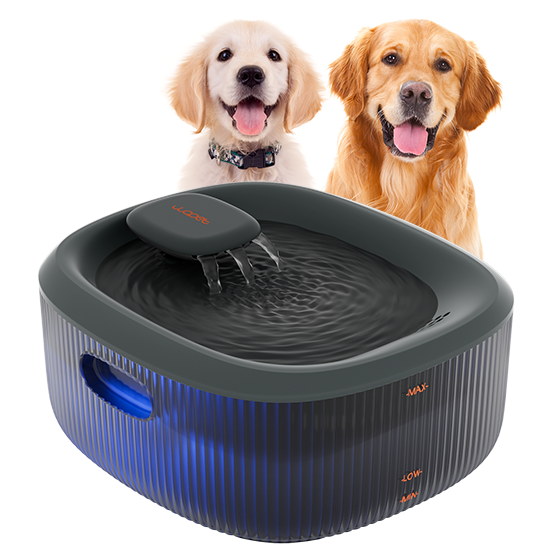
Basin Pet Water Fountain-W600
Model: W600
$43.99
$69.99

[Basic] Ceramic Pet Water Fountain with Power Cable
Model: W03L
$59.99
$99.00
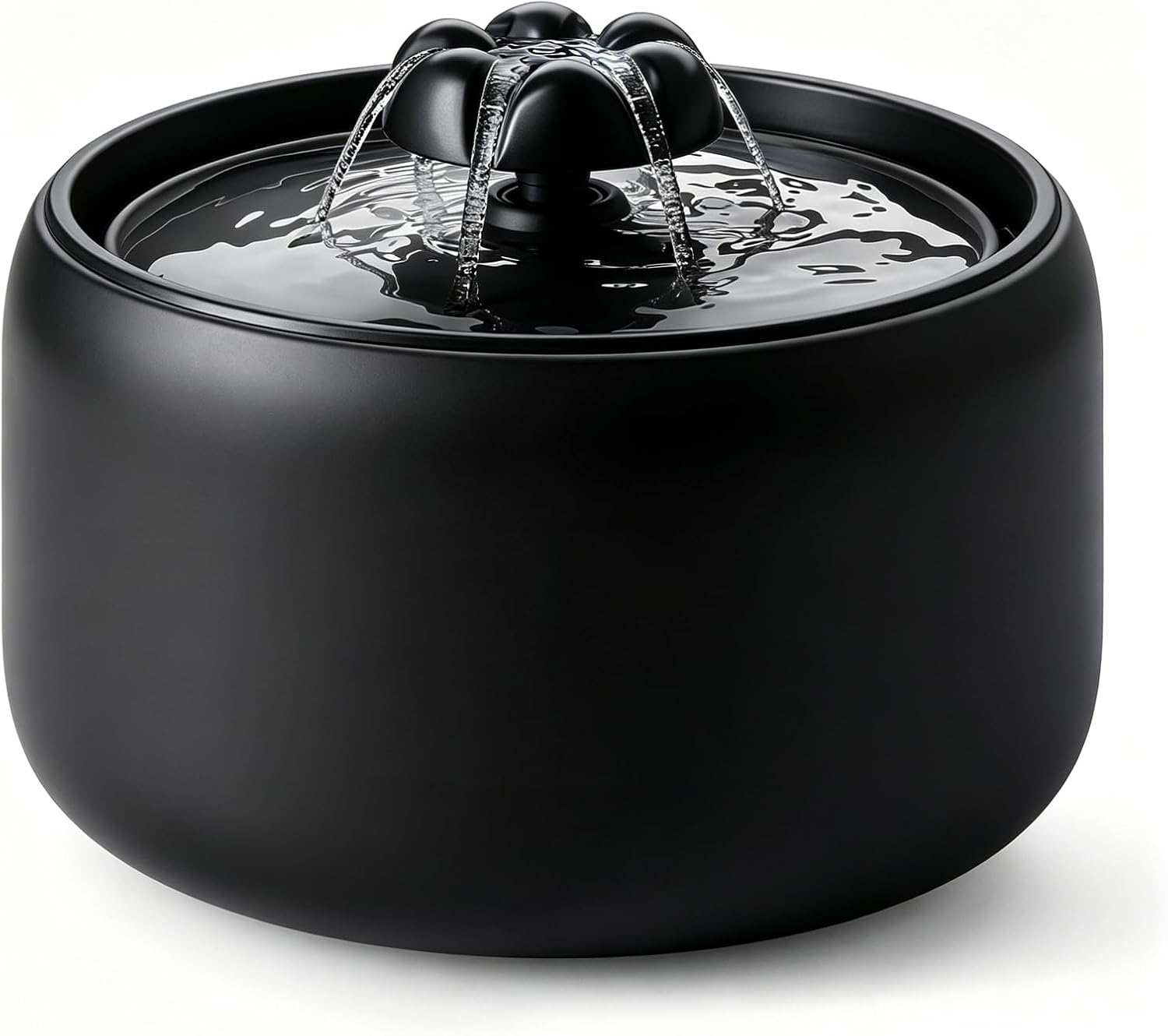
[Black] W03L 3L Premium Ceramic Cat Water Fountain
Model: W03L Black
$59.99
$69.99
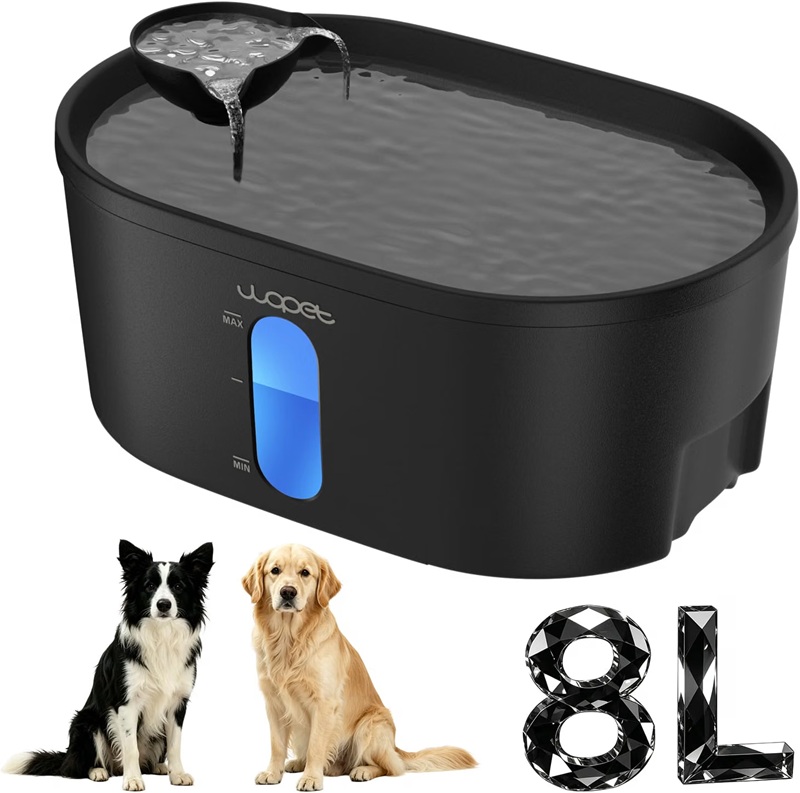
WOPET 8L Pet Water Fountain For Multiple Cats or Large Dogs A08
Model: A08
$49.99
$59.99
WOPET A08 Dog Water Fountain Filters
Model: A08 Filter
$19.99
$29.99

DOWNLOAD APP

WOpet life




Copyright © 2026 WOPET. All Rights Reserved.