Nov 27, 2026
Author:Jackson Watson
Yes. With Device Sharing in the WOPET Life app, two people can access the same compatible automatic pet feeder from their own accounts. The person who set up the feeder starts the share under Device Sharing → Shared by me → Share now. The other person can then check Shared with me from their own account.
That’s handy when one person handles breakfast and another gets home in time for dinner. Before you divide up feeding duties, open the feeder on both phones and check which controls the second person can use.
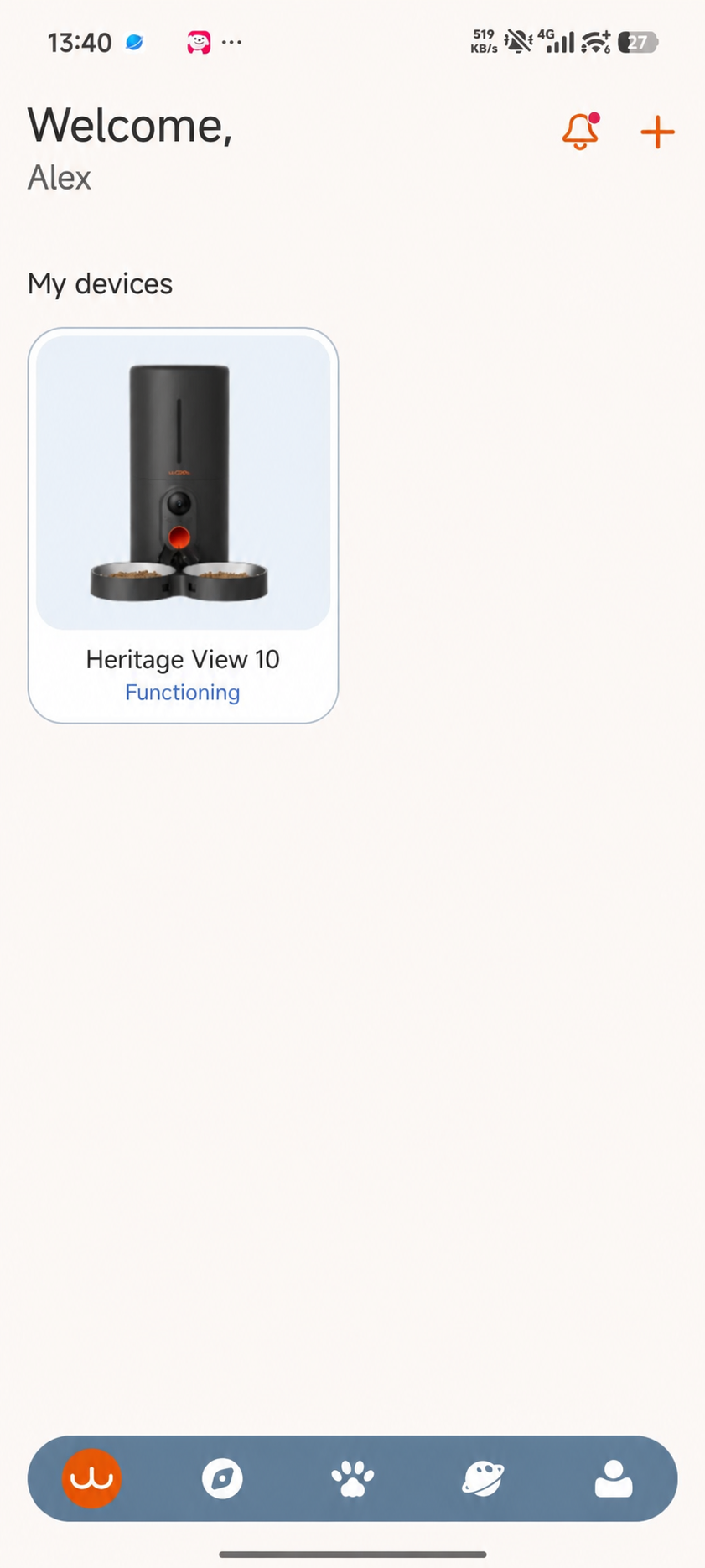
On the phone that originally set up the feeder, open WOPET Life and look under My devices. Check the device name, especially if you have more than one feeder at home. In the example below, the device appears as Heritage View 10.
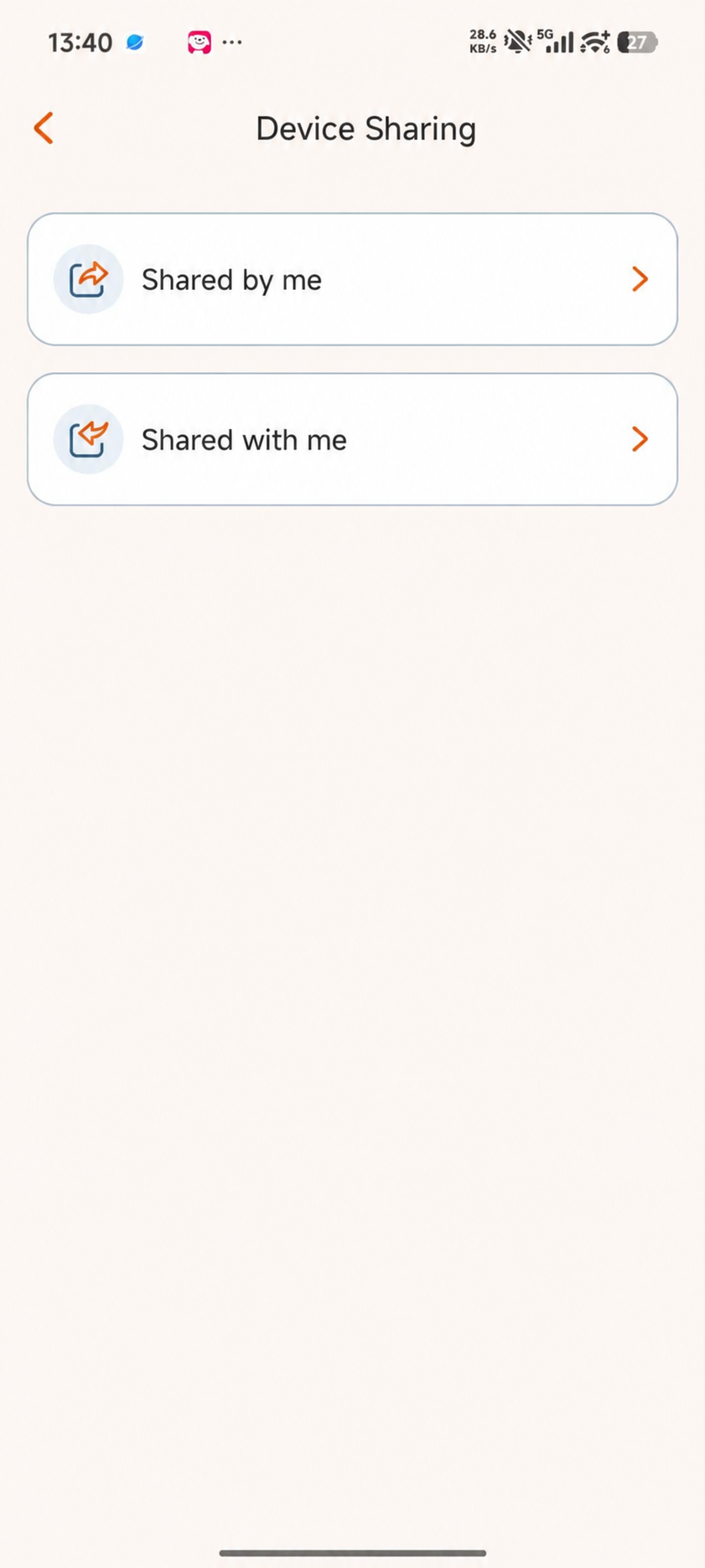
On the owner’s phone, open Device Sharing and choose Shared by me. This is where you start sharing a device from your account. Shared with me is where the other person checks for devices shared with their account.
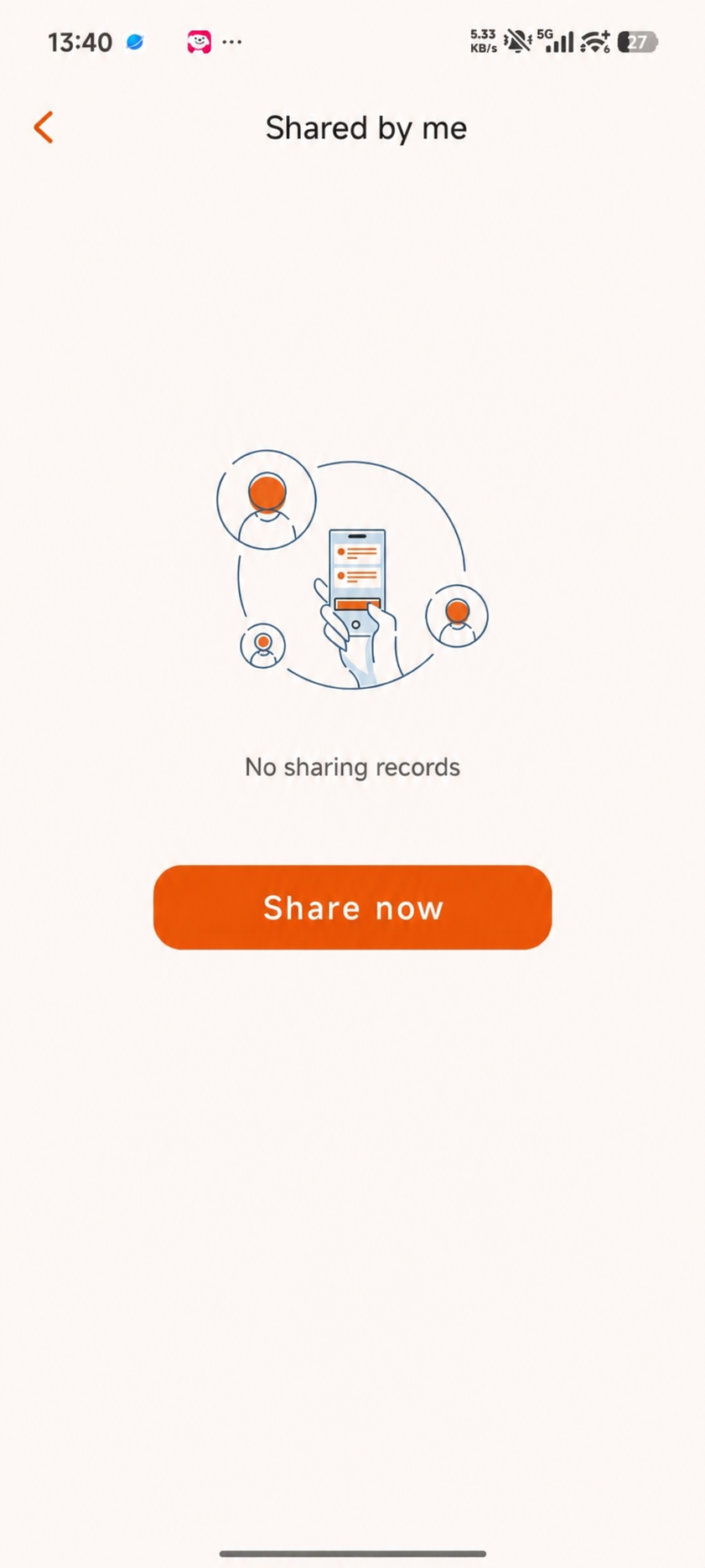
Under Shared by me, tap Share now and follow the prompts in your version of WOPET Life. Have the other person sign in to their own account and look under Shared with me. Once the feeder appears, ask them to open it while you’re both available to check the setup.
Check the shared device on the second phone before relying on it. Open the feeder and see whether the second person can view the feeding history, start a manual feed, edit the schedule, or open the camera on a camera-equipped model. The screenshots above show how to start sharing. The controls that matter for your household are the ones you can see and use from the second account.
If manual feeding is available, try it once while someone is beside the feeder. Start with an empty bowl, use a known portion setting, and count the food dispensed toward your dog’s usual meal. If you need to convert the app’s portions to grams, follow WOPET’s guide to weighing an automatic feeder portion.
Leave routine meals on the existing schedule and agree on who handles exceptions. If Alex gives dinner by hand because the hopper ran out, a quick message such as ‘Dinner served by hand at 6:10’ tells the other person what happened before they open the app and send another portion.
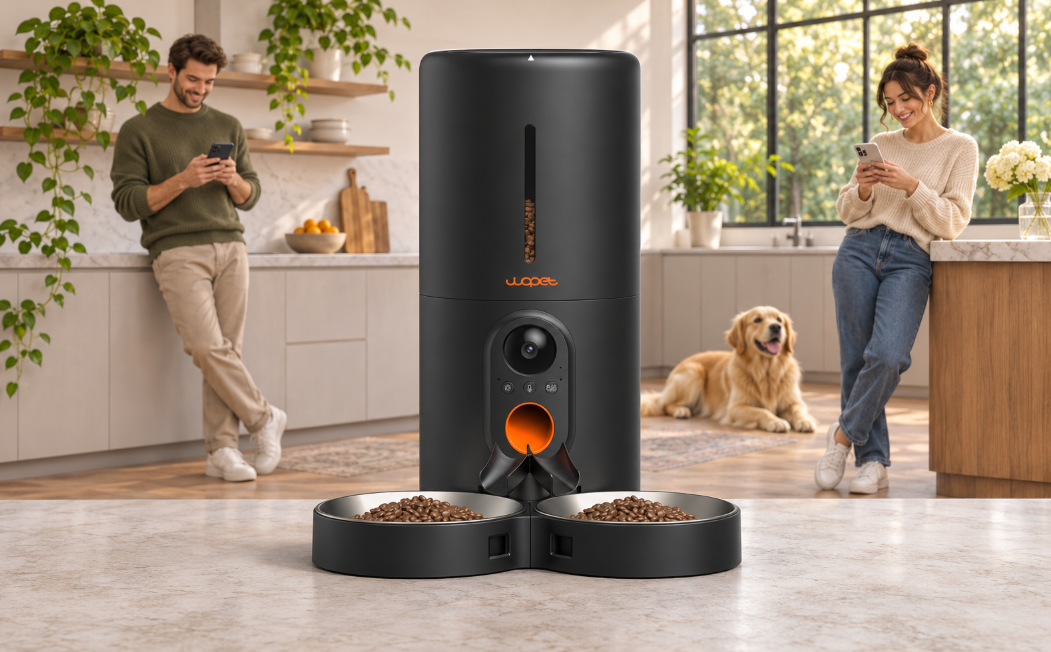
For households that want to look in on meals, the WOPET Heritage View dual-bowl camera feeder is the model pictured in this walkthrough. If the camera is available on the second phone, check during a normal meal whether you can see the food land and your dog approach the bowl. If you only see an empty bowl later, ask whoever was home before sending another serving.
Start by checking that both people are signed in to the accounts used for sharing. On the owner’s phone, return to Shared by me and review the share. On the other phone, check Shared with me, then reopen the app and look again. If the device appears but a control you need is missing, note the feeder model, app version, and the control you’re looking for. Those details will help the WOPET Support Center check what your setup supports.
No. With Device Sharing, the owner starts the share from their account, and the other person opens the feeder from their own account.
Yes, if the sitter can open the shared device and has the controls they need. Set it up together before you leave. Show them the regular meal schedule, tell them when to use manual feeding, and leave written instructions for serving the usual measured meal by hand if the feeder doesn’t dispense.
Popular Post

Top 8 Reasons Why Does My Cat Sleep Between My Legs?
Mar 03, 2025

What to Do If My Dog's Poop Is Black But Not Tarry
Feb 04, 2023

Superfecundation Cats: When Kittens in One Litter Have Different Fathers
Jul 11, 2025
Can Cats Have Orange Eyes? Genetics, Breeds, and Care Guide
May 20, 2025
How Long Does Dry Cat Food Last Once Opened? A Comprehensive Guide
Mar 19, 2025
[Blue] W03L 3L Premium Ceramic Cat Water Fountain
Model: W03 LITE
$59.99
$69.99
Basin Pet Water Fountain-W600
Model: W600
$43.99
$69.99
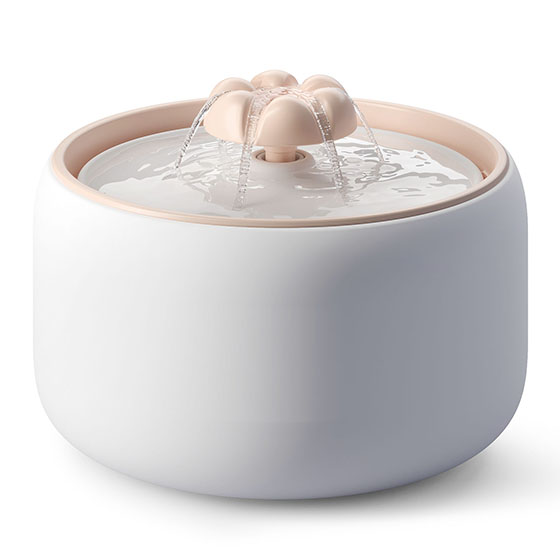
[Basic] Ceramic Pet Water Fountain with Power Cable
Model: W03L
$59.99
$99.00
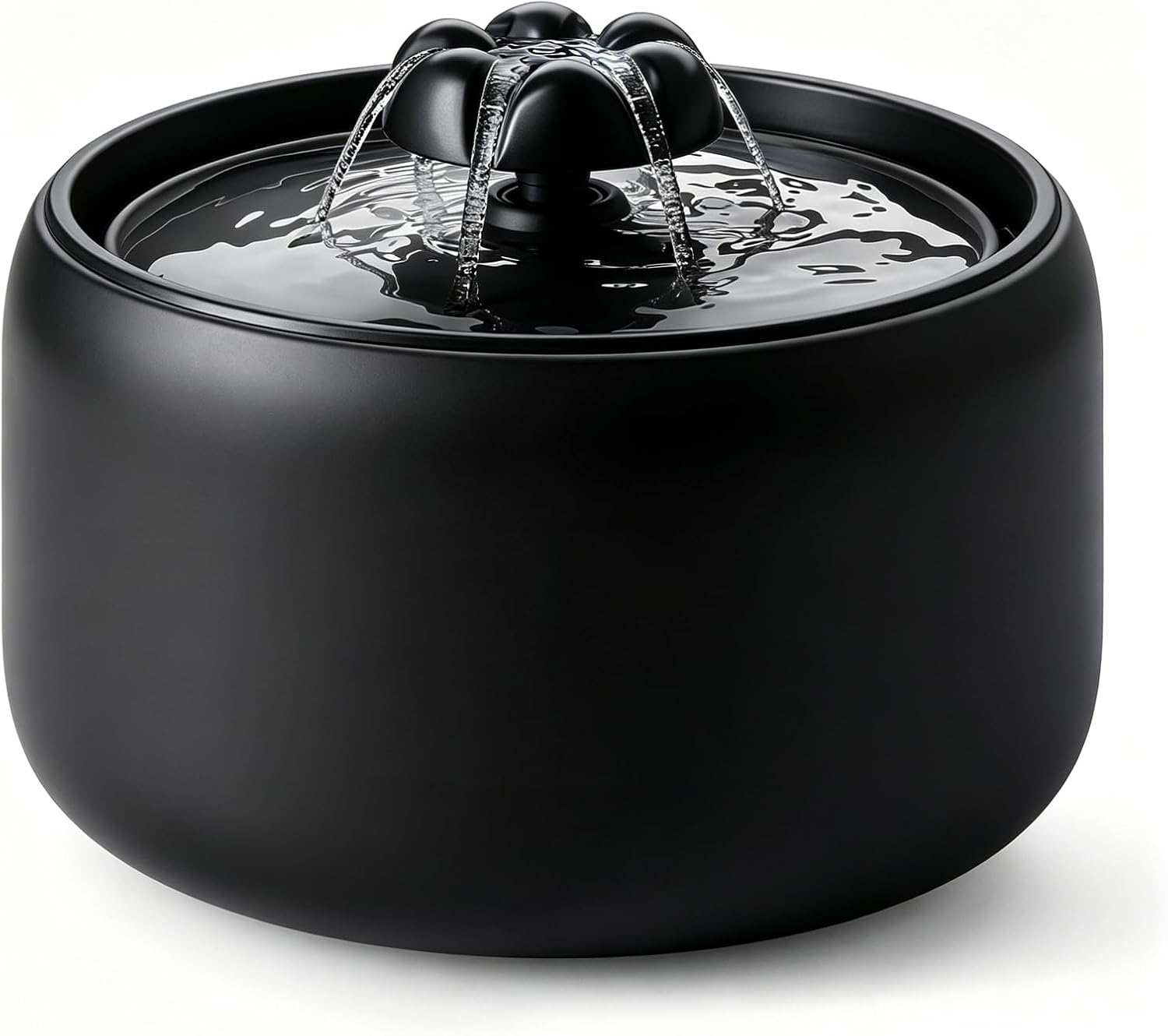
[Black] W03L 3L Premium Ceramic Cat Water Fountain
Model: W03L Black
$59.99
$69.99
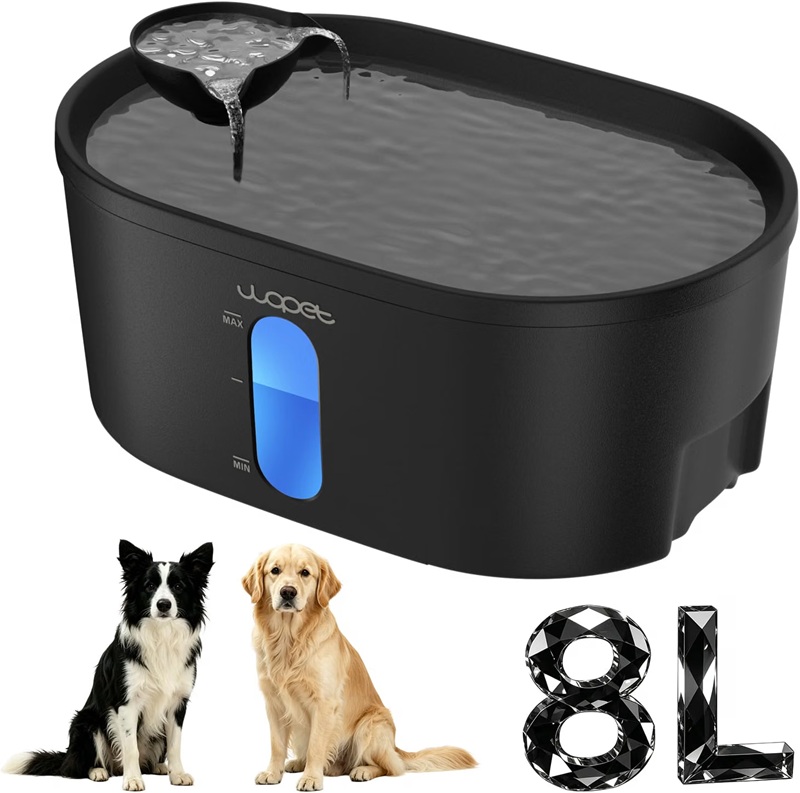
WOPET 8L Pet Water Fountain For Multiple Cats or Large Dogs A08
Model: A08
$49.99
$59.99
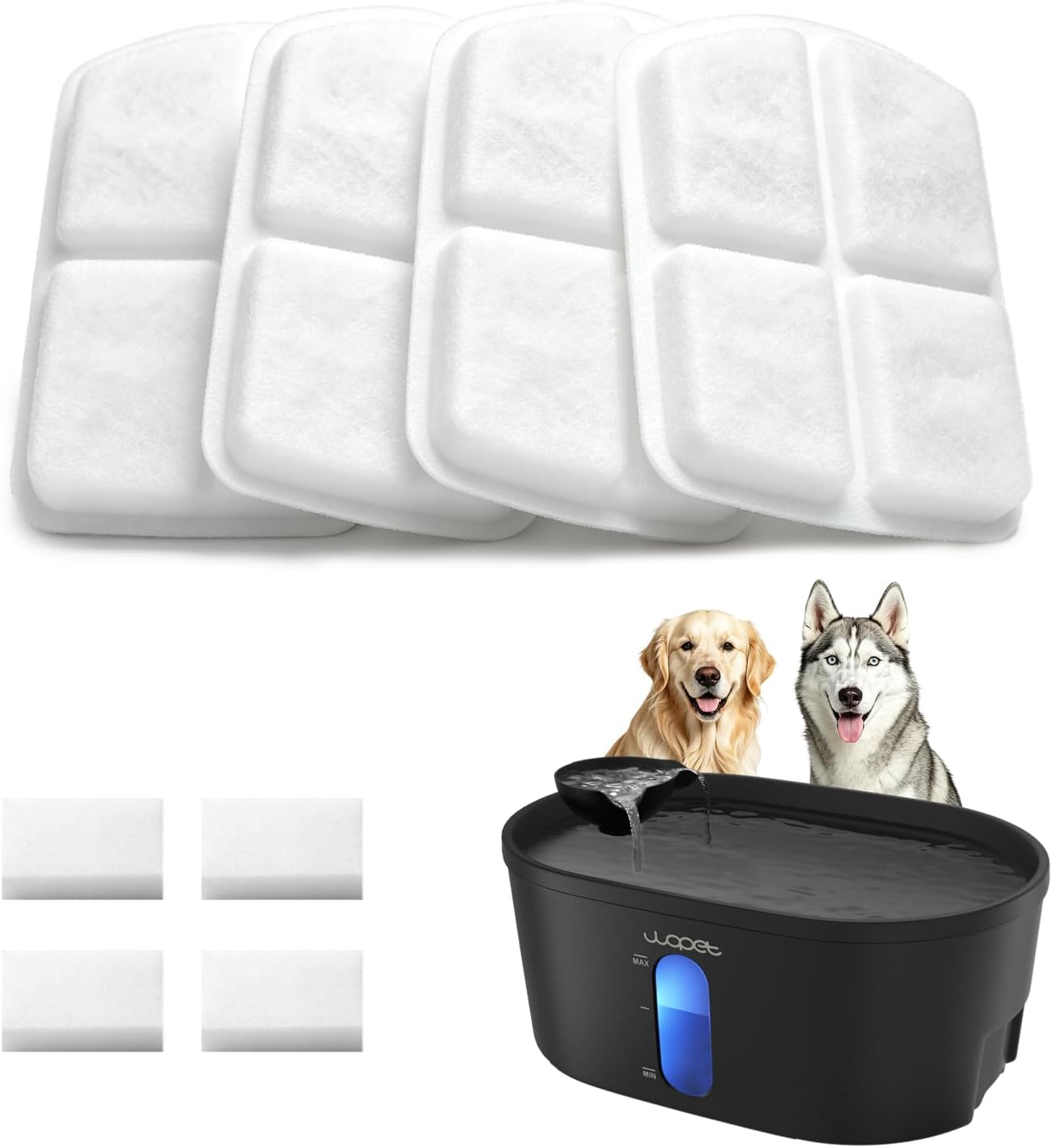
WOPET A08 Dog Water Fountain Filters
Model: A08 Filter
$19.99
$29.99

DOWNLOAD APP

WOpet life




Copyright © 2026 WOPET. All Rights Reserved.